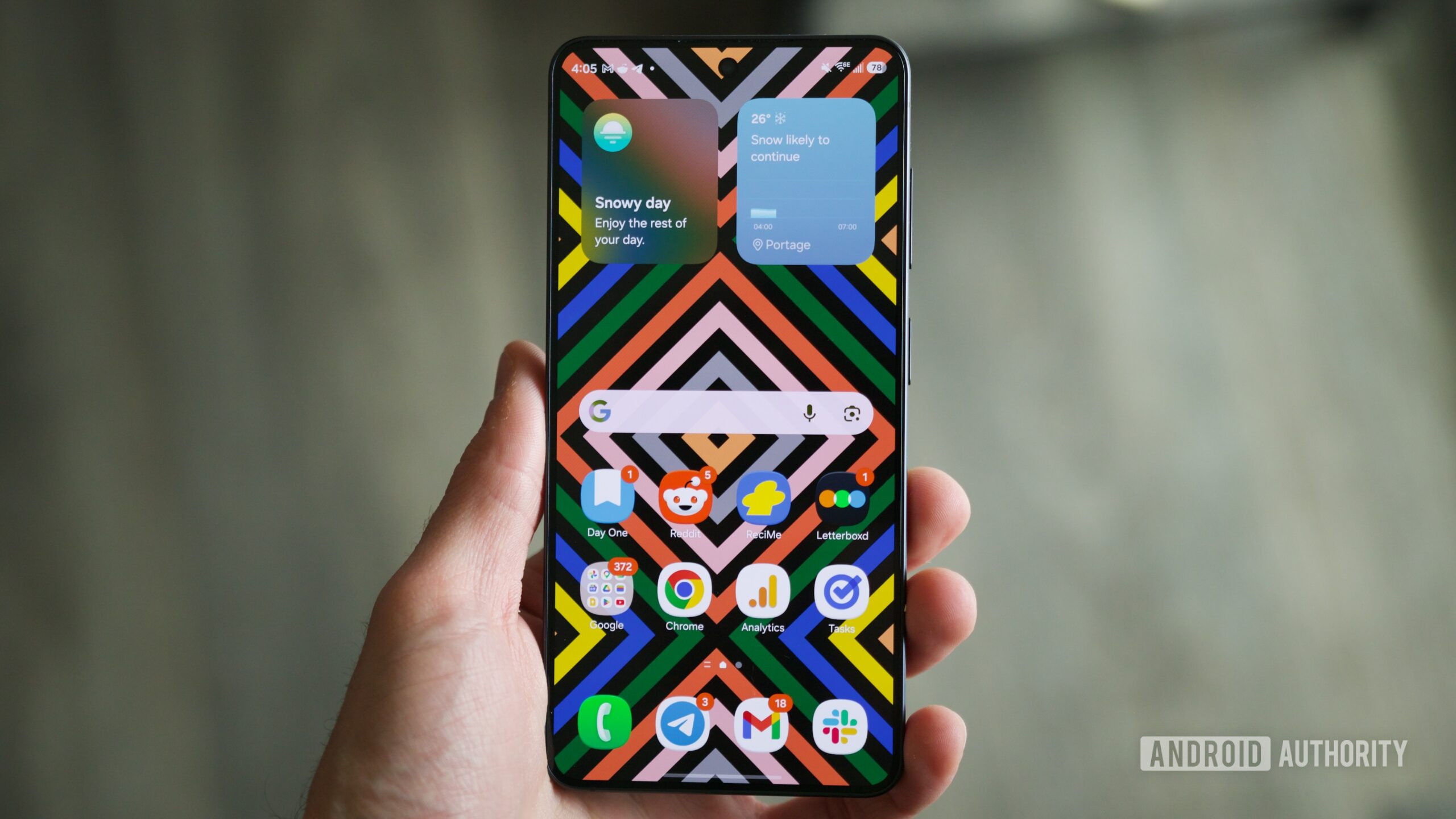
Just get a new Samsung phone? Turn off these 6 features ASAP
Android Authority • • technology
Key Points:
- Many new Samsung phone users find the default Samsung Keyboard frustrating due to poor auto-correct and voice typing; it is recommended to replace it with Gboard or another preferred keyboard for a better typing experience.
- Samsung’s split notification panel and Quick Settings can be annoying, but users can easily merge them into a single page by adjusting the panel settings for a more intuitive interface.
- Features like Edge Panels and Samsung Wallet shortcuts, enabled by default, can be intrusive and are advised to be disabled through the settings to avoid accidental triggers and clutter on the home screen.
- Samsung’s lock screen notification display changed in One UI 7 to small icons, which can cause missed alerts; users should switch the notification style to “Cards” for full banners in the center of the lock screen.
- The default screenshot swipe gesture often leads to unintended screenshots when cleaning the screen; disabling the “Palm swipe to capture” gesture in advanced features helps prevent this issue while retaining traditional button-based screenshot functionality.


